Account Settings
The Account Settings page lets you manage your personal profile information and your clinic information.
To access it, go to Settings > Account in the sidebar navigation.
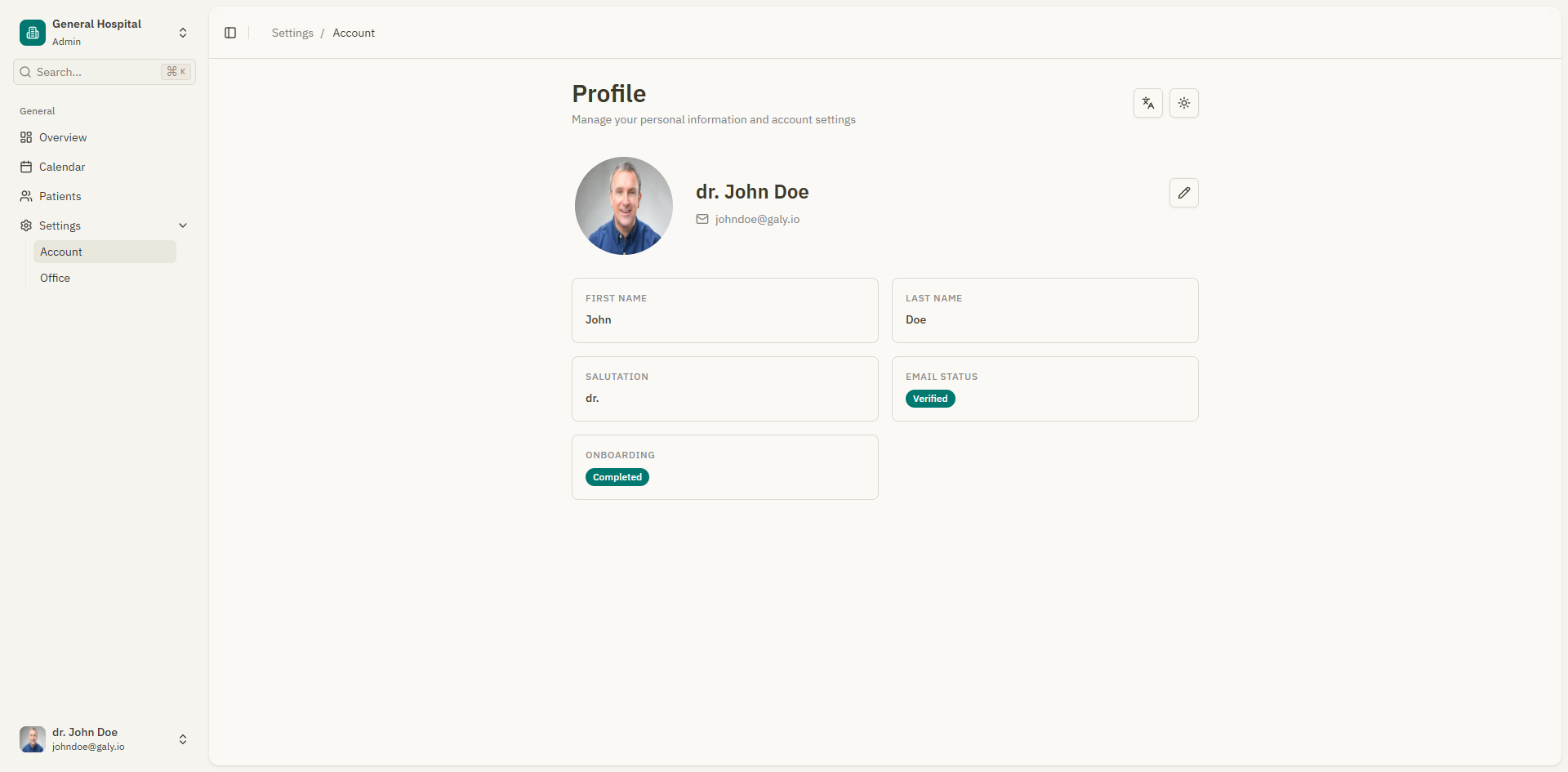
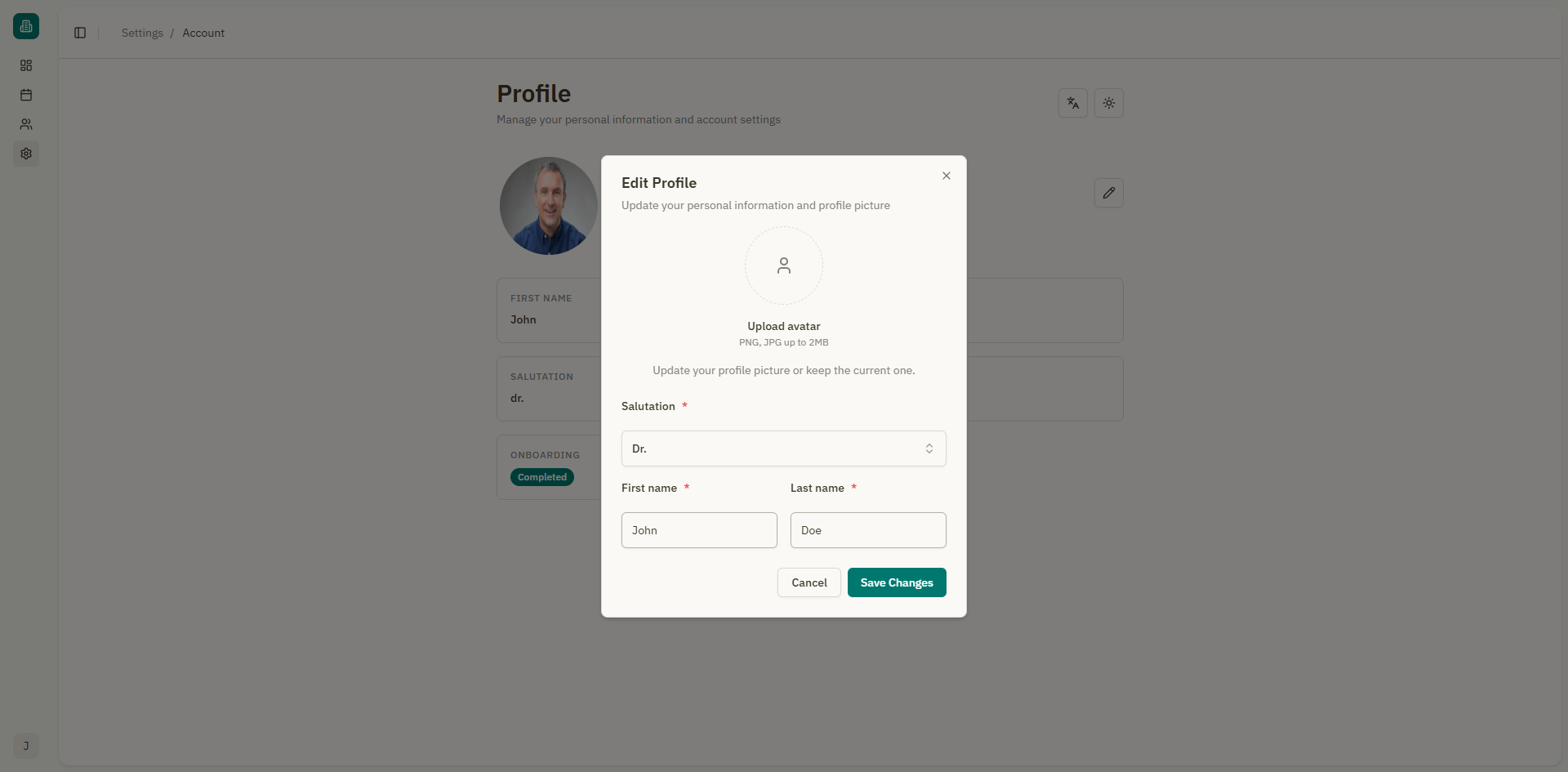
Edit profile
The profile section allows you to update your personal information.
Editable fields
| Field | Description |
|---|---|
| First name | Your given name(s) |
| Last name | Your family name(s) |
| Salutation | Your professional title (Dr., Dra., Lic., Prof., Odont., Psic., Enf., Med., Vet.) |
Updating your information
- Modify any of the fields above.
- Click "Save Changes".
- A success notification confirms: "Profile updated successfully".
Profile picture
You can upload or change your profile picture from the account settings.
Uploading a new avatar
- Click the upload area in the profile picture section.
- Select a PNG or JPG image from your device.
- The image previews immediately.
- Click "Save Changes" to apply.
Removing your avatar
Click "Remove avatar" to delete your current profile picture and revert to the default.
Requirements
- Accepted formats: PNG, JPG
- Maximum file size: Displayed in the upload area (e.g., "PNG, JPG up to 4MB")
Logging out
To log out of Galy:
- Click your name or avatar at the bottom of the sidebar.
- Select "Log out".
You will be redirected to the login page.