Patient List
The Patients page shows all patients registered in your medical office. From here you can search, view details, create new patients, and delete records.
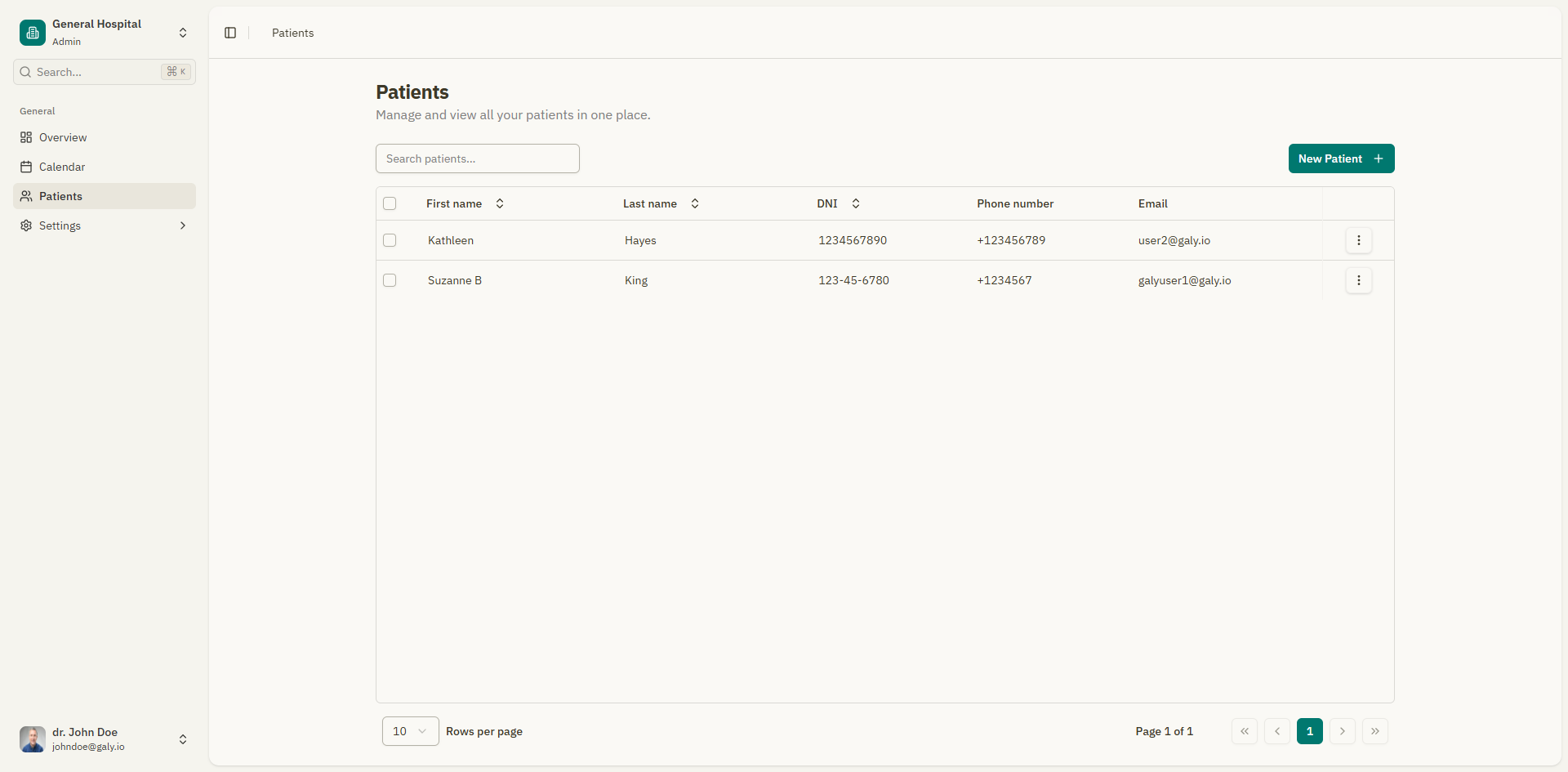
Patient table
The patient list displays a table with the following columns:
| Column | Description |
|---|---|
| Name | Patient's full name (first and last name) |
| DNI | Patient's ID number |
| Patient's email address | |
| Phone | Patient's phone number |
| Last appointment | Date of the most recent appointment |
| Next appointment | Date of the next scheduled appointment |
| Total visits | Number of completed appointments |
Searching patients
Use the search bar at the top of the patient list to find patients by name, email, or phone number. Results filter in real time as you type.
Pagination
At the bottom of the table, use pagination controls to navigate through the list:
- Select the number of rows per page (e.g., 10, 20, 50).
- Use the navigation arrows to move between pages.
- The current page number and total pages are displayed.
Patient actions
Viewing a patient
Click on any patient row or click "View details" from the row's action menu to open the patient details page.
Creating a new patient
Click the "New Patient" button in the top-right corner to open the patient creation form.
Deleting a patient
- Click the actions menu (three dots) on the patient's row.
- Select "Delete".
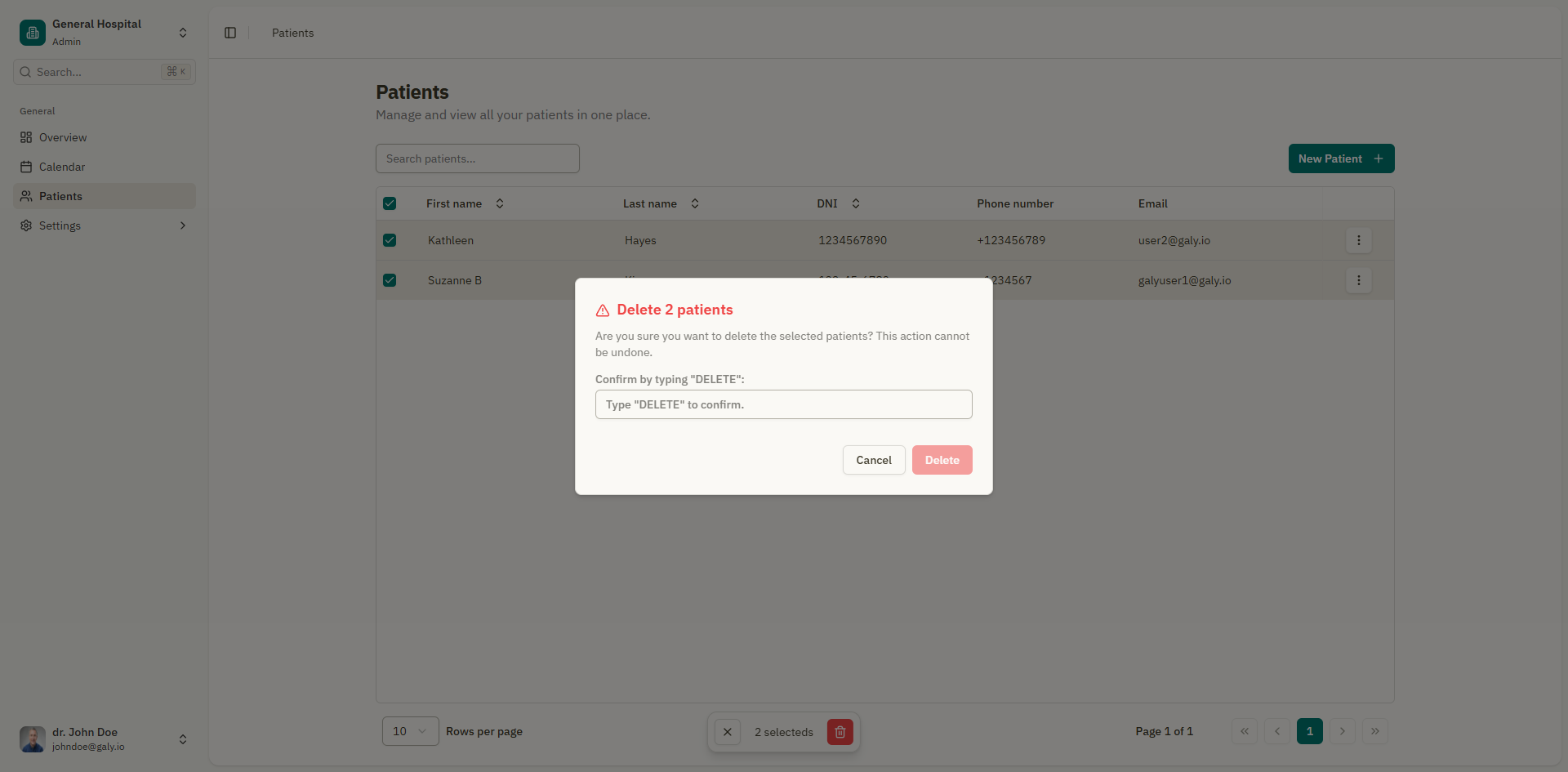
- A confirmation dialog asks you to type "DELETE" to confirm.
- Click "Delete" to permanently remove the patient.
Deleting a patient is permanent and cannot be undone. All associated appointments, prescriptions, and attachments will also be removed.
Bulk delete
To delete multiple patients at once:
- Select patients by clicking the checkbox on each row.
- A toolbar appears showing how many patients are selected.
- Click "Delete selected patients".
- Type "DELETE" in the confirmation dialog.
- Click "Delete" to confirm.
Empty state
If you have no patients yet, the page shows a friendly message: "No patients found" with a "Create new patient" button. If you've applied filters that return no results, a "Clear filters" button is also available.